Release Note
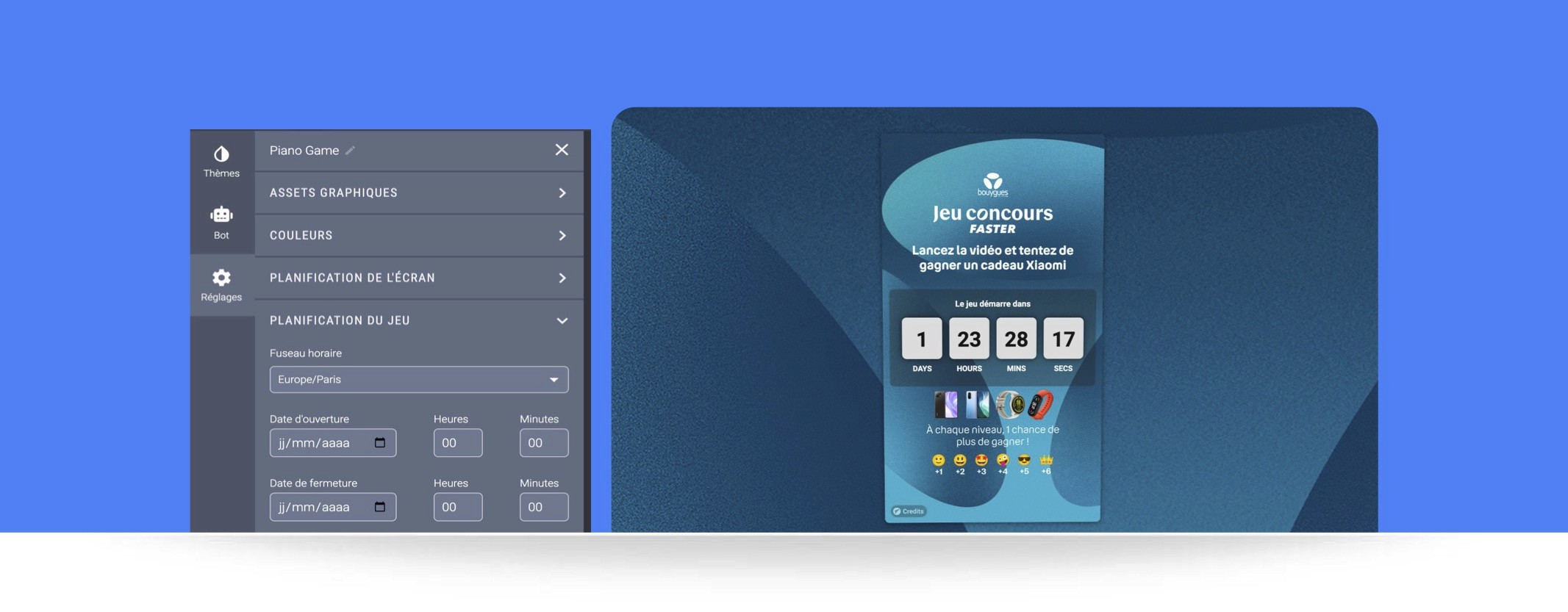
We've introduced several features to give you complete freedom over how your content is displayed based on your news and events. You can now schedule the display of your content according to specific dates and times.
Schedule a content screen
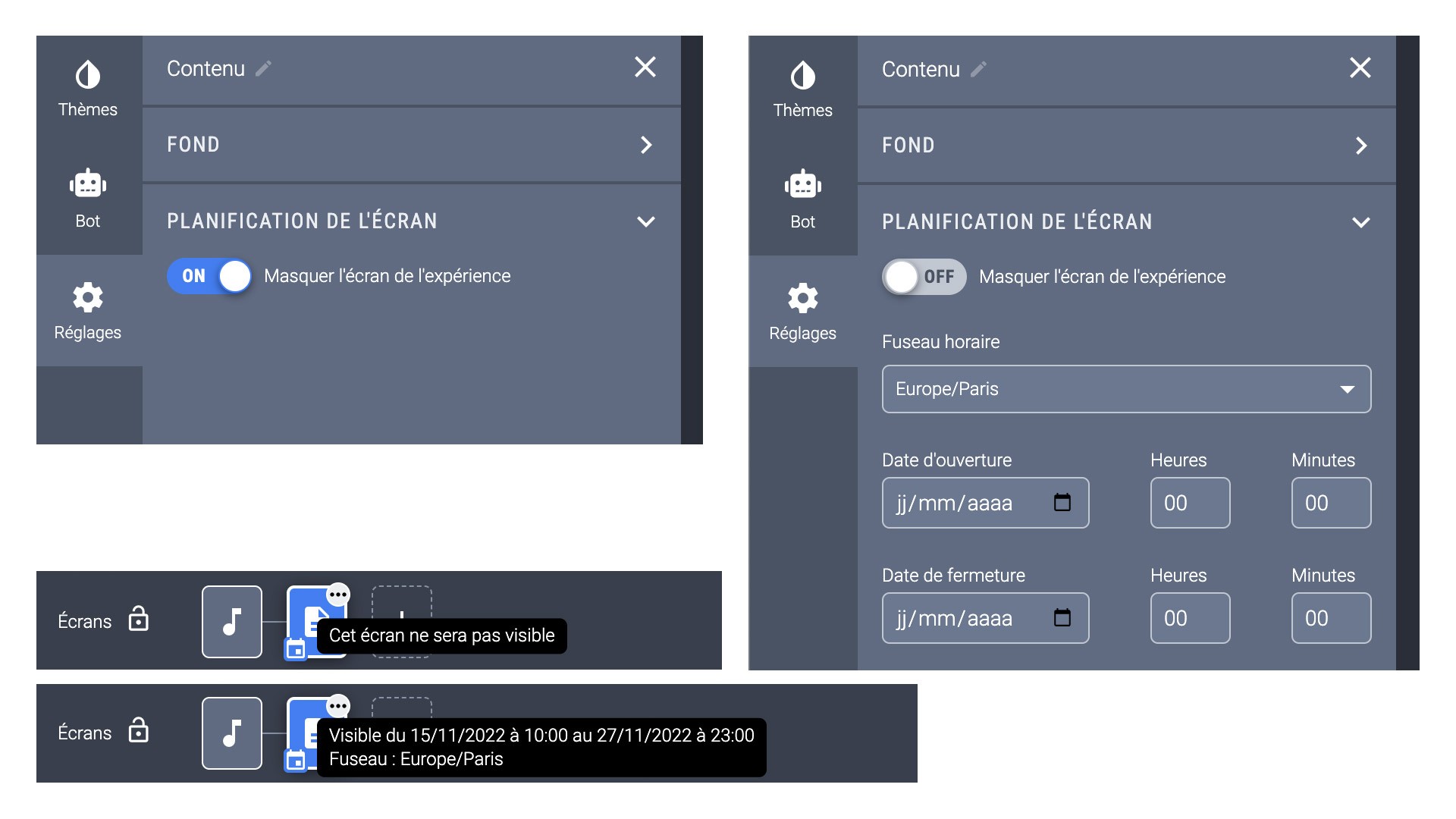
In the settings, you'll find the "Screen scheduling" tab. It lets you control the visibility of each screen according to your preferences. If you're using a content screen, you can choose to hide it completely from your experience, or define a time window for its visibility by setting the time zone and its start and end dates.
Also, when you hide or schedule a screen, an icon appears on the corresponding brick and a tooltip indicates its status:
Schedule a game and display a countdown
It works the same way, except that you can now leave your game visible before its launch. The 'Start' button will stay disabled until the date and time you've set.
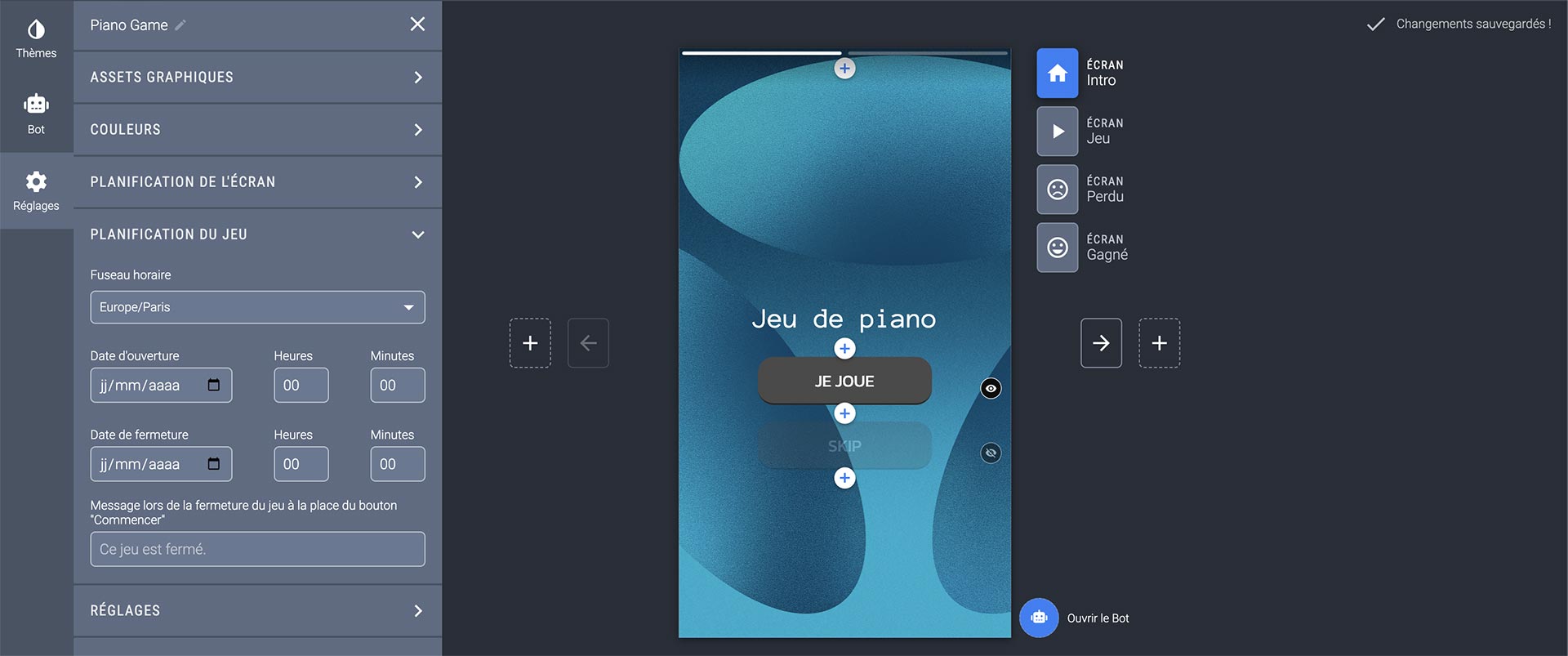
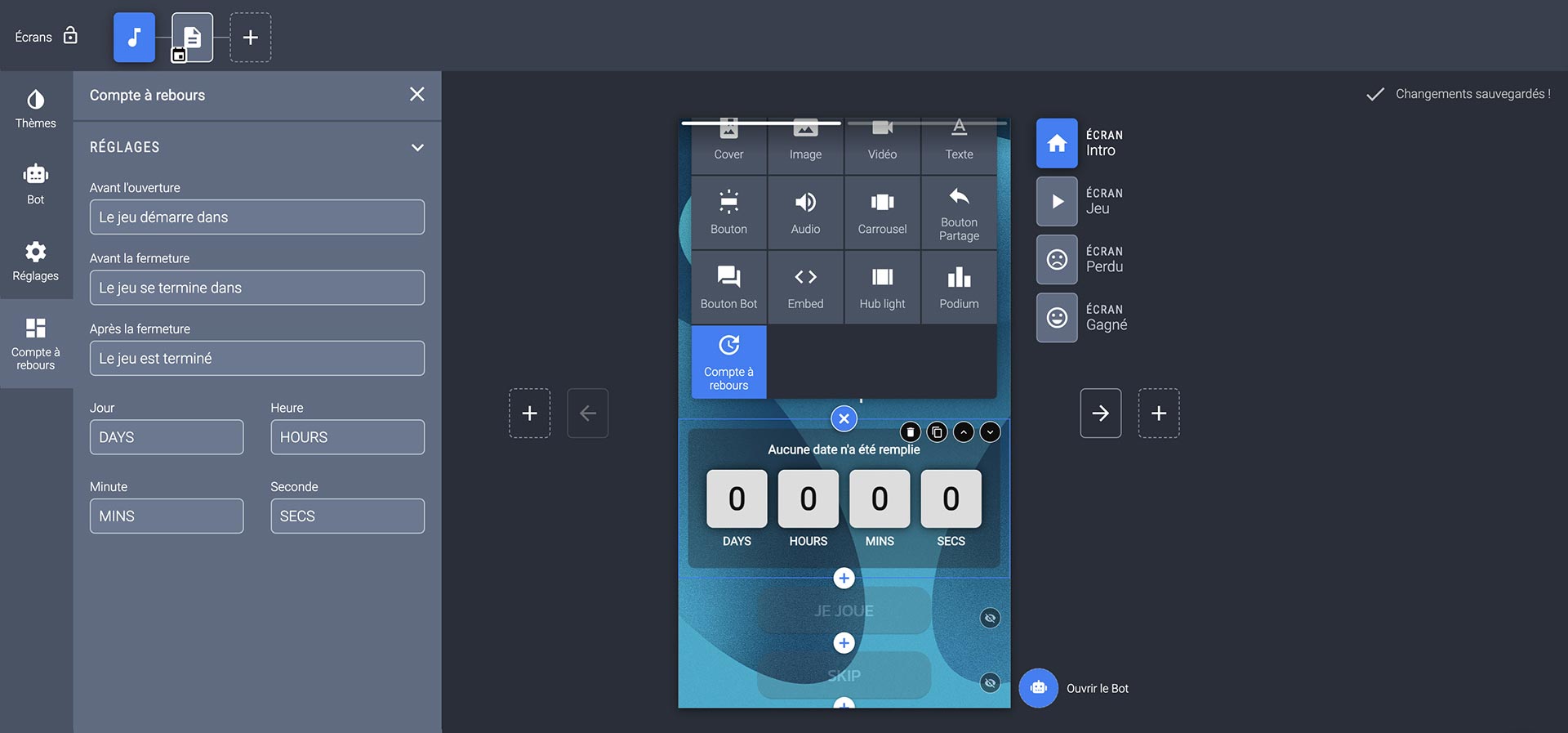
You can also add the 'Countdown' component, which will sync with the date and time you've set for the opening of your game.
Schedule an image, a video, an audio player or a button
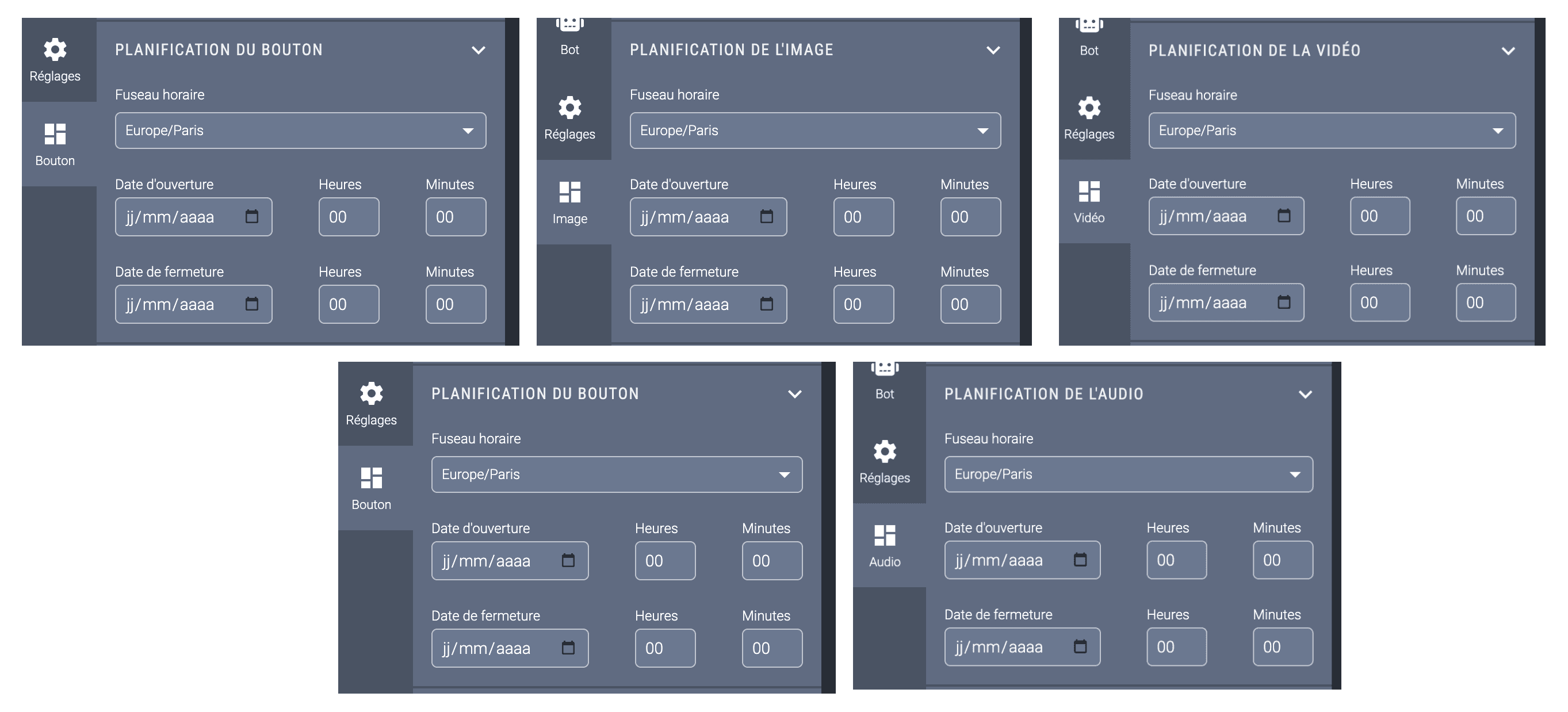
From now on, every component can be scheduled according to your needs. After selecting the component, you'll find the same settings presentation in its options:
Here is our help center on this topic.